Use an archive app that supports RAR, such as Zip Opener. Save the RAR to Files, share it to Zip Opener, then extract it. If the archive is password-protected, you’ll need the password from its sender.
A .rar file is an archive: a container that holds one or more files. Seeing a RAR attachment on your iPhone does not mean the file is damaged. You need an app that can extract that archive format before you can work with the documents inside.
Open a RAR with Zip Opener
- Save the complete archive.
If the file arrived in Mail or a browser, save it to Files first. Wait for the download to finish. In Files, check Downloads, On My iPhone, or iCloud Drive.
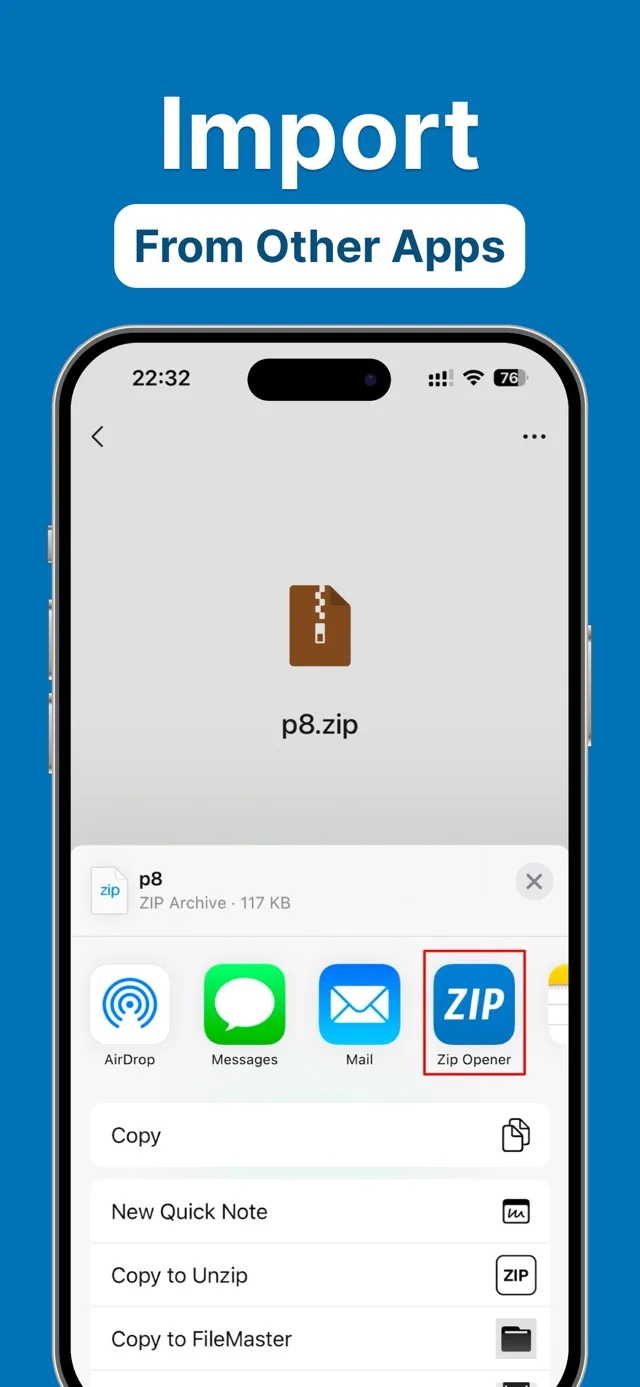
- Send it to Zip Opener.
Install Zip Opener from the App Store. In Files, touch and hold the RAR, choose Share, and select Zip Opener. If it is not visible, swipe across the app row and check More.
- Extract the archive.
Select the imported archive in Zip Opener and use its extraction action. For a protected RAR, enter the password exactly as supplied. This is the archive password, not your iPhone passcode or Apple Account password.
- Open the extracted files.
Browse the extracted contents. Preview supported documents, images, audio, or video, then use the app’s sharing controls to save or send the files you need.
What about the Files app?
Apple’s built-in ZIP instructions describe opening ZIP archives in Files. If Files only previews your RAR or does not offer a way to extract it, use a RAR-capable app. Renaming .rar to .zip does not convert the archive.
If the archive won’t open
The archive asks for a password.
Ask the sender for the original password. Check uppercase letters, spaces, and similar-looking characters. Zip Opener can use a password; it cannot recover or bypass one.
Extraction fails or files are missing.
Download the archive again and check that you have enough available storage for its extracted contents. If the sender provided several numbered parts, ask for a single RAR or ZIP instead; this guide does not assume support for split archives.
Meet your next archive opener.
Extract ZIP, RAR, and 7z. Work with protected ZIP and RAR archives when you have their passwords.
Download on theApp StoreFree download. In-app purchases. iOS 15 or later.
Common questions
Can I turn a RAR into a ZIP just by renaming it?
No. Changing the filename extension does not change the archive format. Extract the files first, then create a new ZIP if you need that format.
Can Zip Opener extract a password-protected RAR?
Yes, the App Store description lists password-protected RAR extraction. You must know the correct archive password.
Sources & further help
Product capabilities: Zip Opener on the App Store. Built-in ZIP steps: Apple’s guide to creating and opening ZIP files. Menu labels can vary with iOS and app versions. For help with an error, visit support.