Import the ZIP into Zip Opener, select it to extract, and enter the archive password when prompted. You need the correct password from the person who created it. Zip Opener does not remove, recover, or bypass passwords.
A protected ZIP needs more than a tap: the app must support the archive’s encryption and you must know its password. Before installing anything, make sure the sender has given you the right password for this particular file.
Extract a ZIP with a password
- Save the ZIP and get its password.
Save the archive to Files and wait until its download is complete. Ask the sender for its password through a separate channel when appropriate.
- Share the archive to Zip Opener.
Install Zip Opener. In Files, touch and hold the ZIP, choose Share, and select Zip Opener from the app row. Look under More if you do not see it.
- Enter the archive password.
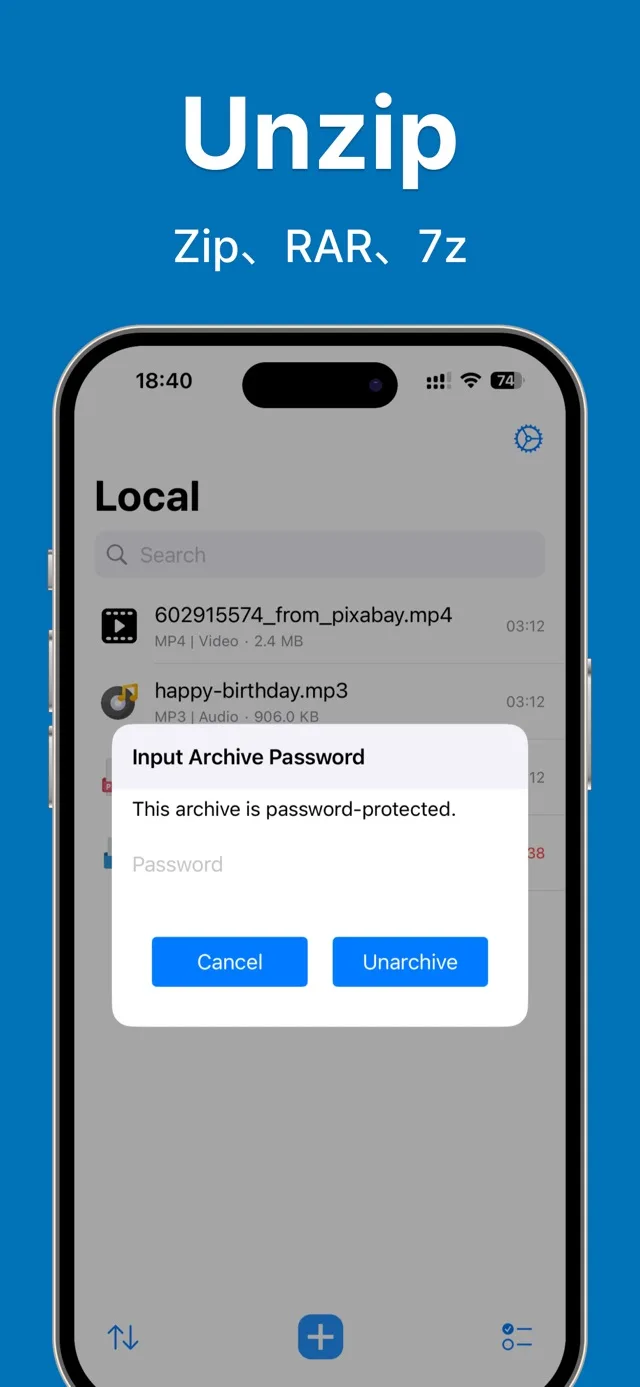
Select the imported archive and choose to extract it. When the Input Archive Password dialog appears, type the password and tap Unarchive. The screenshot below shows this prompt.
- Check the extracted contents.
After extraction, open the resulting files. Use a compatible viewer for each file type and save or share the items you need.
What about the Files app?
An ordinary ZIP may open directly in Apple’s Files app. For a protected archive that Files does not extract, a compatible archive app can help. Zip Opener lists password-protected ZIP support; compatibility with every encryption variant is not promised.
If the archive won’t open
The password is rejected.
Passwords are case-sensitive. Check for an accidental leading or trailing space, a different keyboard language, or a character such as 0 instead of O. Confirm that the password matches this version of the archive.
You do not know the password.
Contact the sender. Your Apple Account password and iPhone passcode will not unlock someone else’s archive. Neither this website nor Zip Opener offers password recovery.
The correct password still fails.
Download the archive again, check available storage, and ask the sender to recreate it using a compatible ZIP format. Contact support with the error message if needed, without sending the password or confidential contents.
Meet your next archive opener.
Extract ZIP, RAR, and 7z. Work with protected ZIP and RAR archives when you have their passwords.
Download on theApp StoreFree download. In-app purchases. iOS 15 or later.
Common questions
Do I upload my ZIP to this website?
No. This website provides instructions and an App Store link. It has no archive-upload or online extraction feature.
Can I create a password-protected ZIP too?
Yes. Zip Opener’s App Store description also lists ZIP creation with a password. Feature access may require an in-app purchase; check the app for current details.
Sources & further help
Product capabilities: Zip Opener on the App Store. Built-in ZIP steps: Apple’s guide to creating and opening ZIP files. Menu labels can vary with iOS and app versions. For help with an error, visit support.